![Safely-Logo@2x.png]](https://hello.safely.com/hs-fs/hubfs/Safely-Logo@2x.png?height=40&name=Safely-Logo@2x.png)
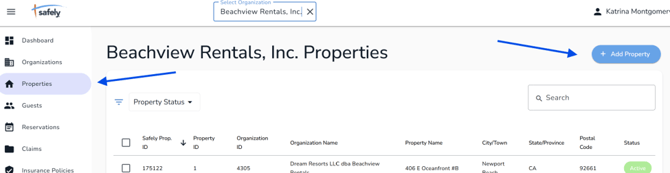
Step 1: Go to Properties tab in Safely Portal
Step 2: Click Add Property
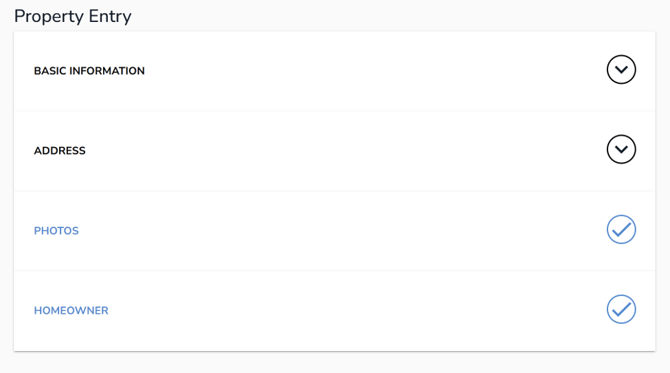
Step 3: Click Basic Information
- The system automatically skips to Address section, so click Address, and then scroll up and click on the Basic Information section
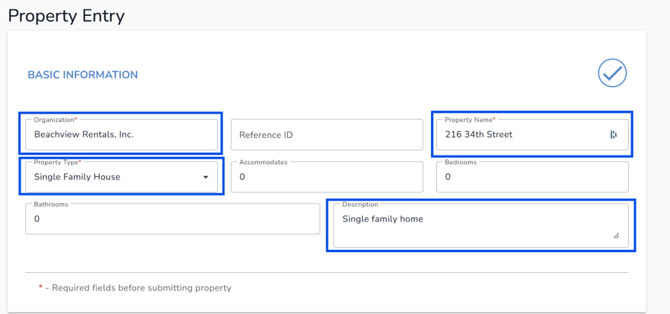
Step 4: Enter the following details:
- Organization Name
- Property Name
- Property Type
- Description
- If multi or parent/child properties, enter as follows:
- Full home = Duplex; 2 single-family homes
- Individual units = unit # (if applicable) - single-family home
- If multi or parent/child properties, enter as follows:
Step 5: Click Address and enter the property address
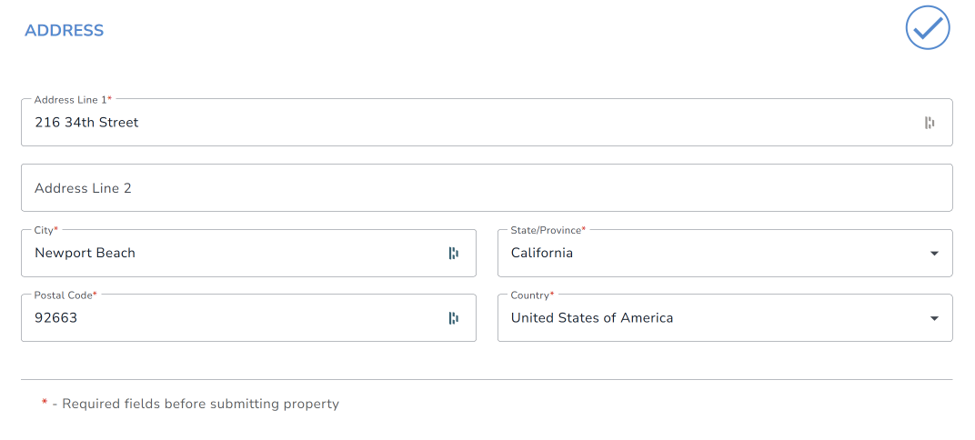
Step 6: Click Submit Property at the bottom of the screen
Step 7: From the property page, click Assigned Policies tab
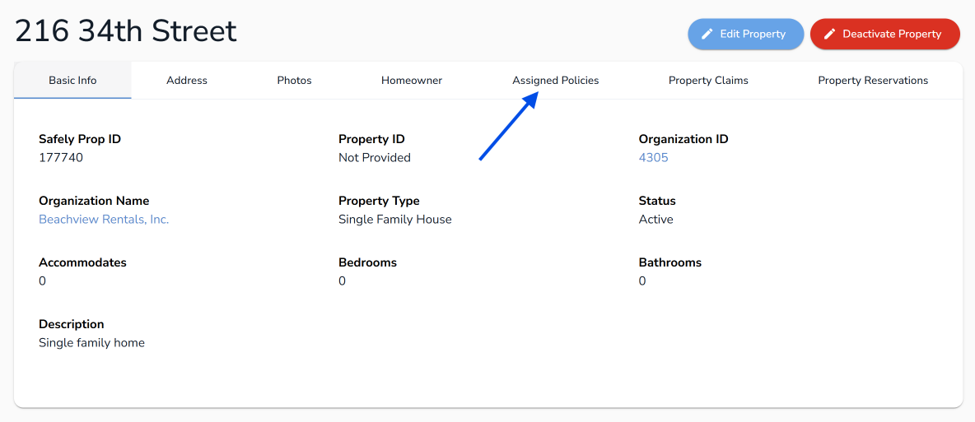
Step 8: Click Assign

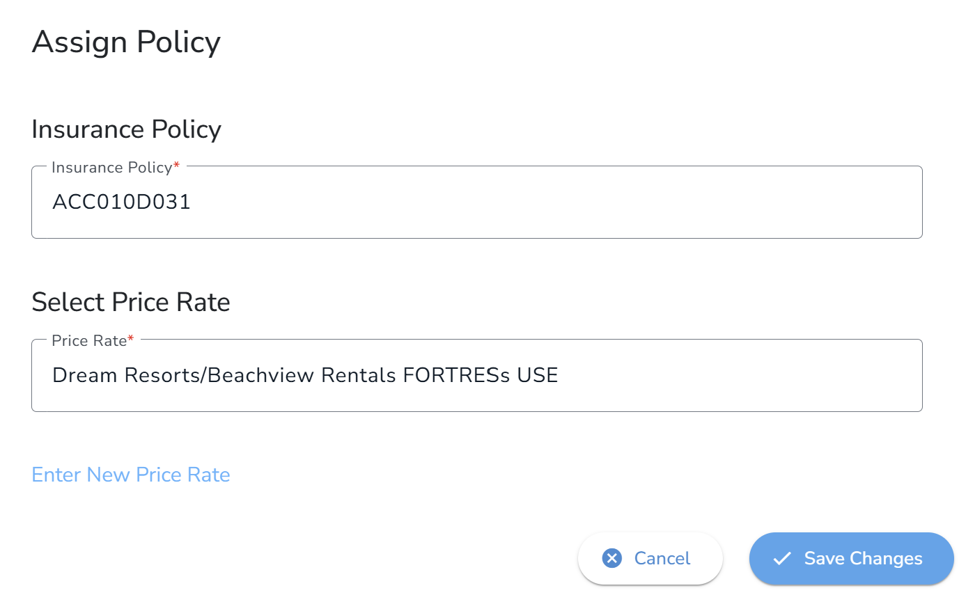
Step 9: Select the correct policy from the dropdown menu
- If multi or parent/child properties, enter as follows:
- Full home = policy number with a D
- Individual units = policy number with an X
- D is the policy that charges the PM and X means no bill property. NB policy rate name goes with the X policy.
Step 10: Copy the Price Rate Name from the Organization in the Safely portal (Assigned Policies tab) and past it in the Select Price Rate field
Step 11: Click Save Changes